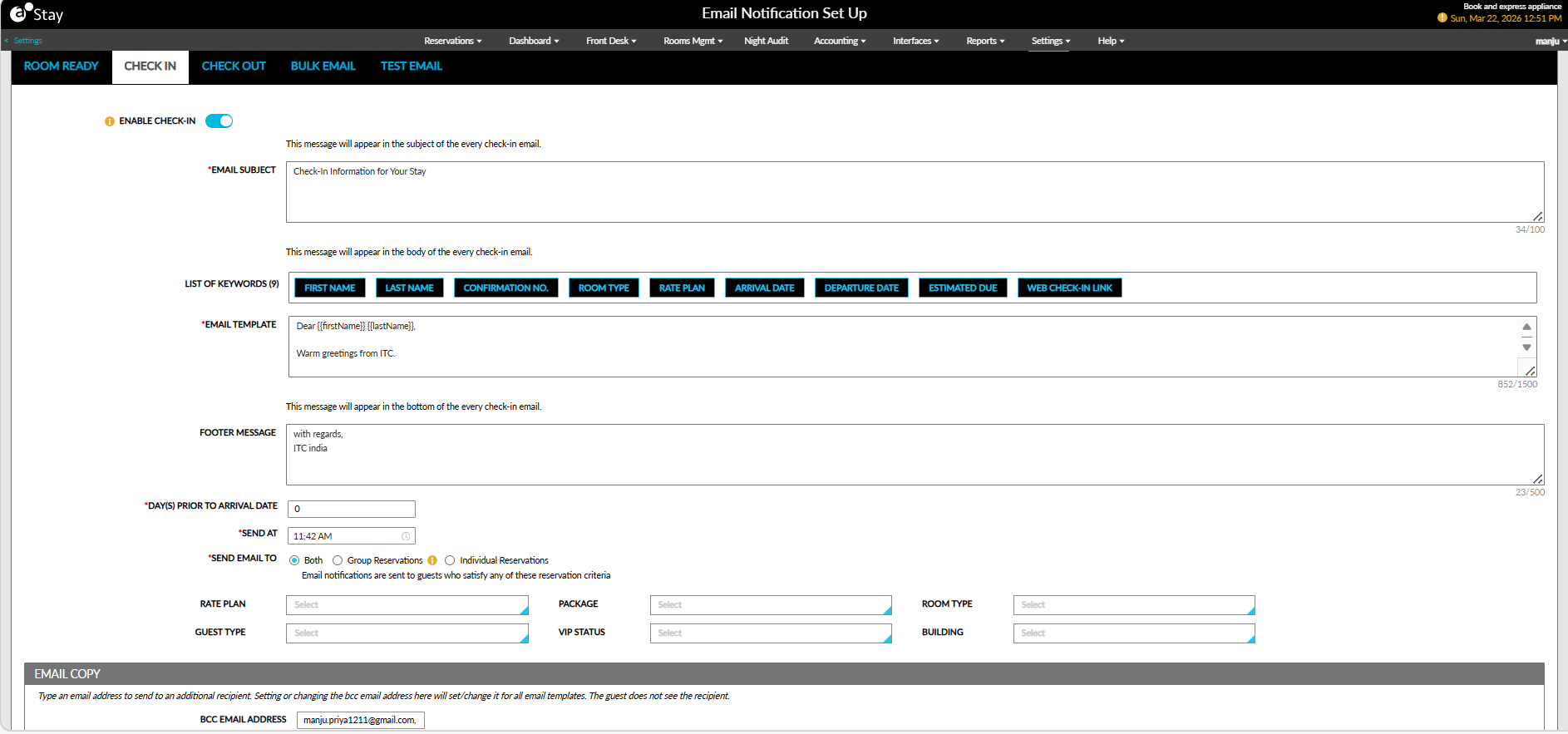
Check-In Notifications
The Check In tab is displayed by default to all users with the new permissions assigned. The following fields are displayed in this tab:
|
Field |
Description |
|---|---|
|
Enable Check-in |
The check-in emails are sent to guests only when this flag is turned on. When enabled, check-in notification emails are sent for reservations created through the following sources:
|
|
Email Subject |
The subject of the email. This is a mandatory field that allows users to enter a maximum of 100 alphanumeric characters. |
|
List of Keywords |
This field lists the following keywords that can be included in the template:
|
|
Email Template |
This is a mandatory field that allows users to configure the reservation details to be included in the emails. Users can select the preferred keywords to be included for each detail. The keywords are replaced with the reservation data when the email is sent. |
|
Footer Message |
This field allows users to configure the message to be displayed at the bottom/footer of every email sent. |
Users can configure the conditions for triggering the email in the following fields:
|
Field |
Description |
|---|---|
|
Day(s) Prior to Arrival Date |
This is a mandatory field that allows users to configure the number of days prior to the arrival date when the email must be sent. |
|
Send At |
This is a mandatory field that allows users to configure the time during which the emails must be sent. |
|
Send Email To |
This is a mandatory field that displays the following options as radio buttons:
|
Users can select the applicability conditions for sending the email in the following fields:
|
Field |
Description |
|---|---|
|
Rate Plan |
This is an optional multi-select drop-down list that allows users to select the preferred rate plans of reservations for which the email must be sent. |
|
Package |
This is an optional multi-select drop-down list that allows users to select the preferred package rate plans of reservations for which the email must be sent. |
|
Room Type |
This is an optional multi-select drop-down list that allows users to select the preferred room types of reservations for which the email must be sent. |
|
Guest Type |
This is an optional multi-select drop-down list that allows users to select the preferred guest types of reservations for which the email must be sent. |
|
VIP Status |
This is an optional multi-select drop-down list that allows users to select the preferred VIP status of reservations for which the email must be sent. |
|
Buildings |
This is an optional multi-select drop-down list that allows users to select the preferred buildings associated with reservations for which the email must be sent. |
Email notifications must be sent only to reservations that match the selected rate plan, package, room type, guest type, or VIP status.
Users can configure a BCC email address in the BCC Email Address field displayed in the Email Copy section. Users can enter multiple email addresses separated by a comma.
Clicking on Save will save the template configured for sending check-in notification emails to guests.